


- News
- All News
- Mobiles
- Laptops
- Watches
- Cameras
- Printers
- Refrigerators
- Air Conditioners
- Washing Machines
- Air Purifiers
- Water Purifiers
- Expert Reviews
- All Reviews
- Mobiles
- Laptops
- Watches
- Cameras
- Printers
- Refrigerators
- Air Conditioners
- Washing Machines
- Air Purifiers
- Water Purifiers
- Articles
- All Articles
- Mobiles
- Laptops
- Watches
- Cameras
- Printers
- Refrigerators
- Air Conditioners
- Washing Machines
- Air Purifiers
- Water Purifiers
- Videos
- Videos

Ad
How to Set Up & Use Voice Control on Modern Smart TVs: Google TV & webOS Tips

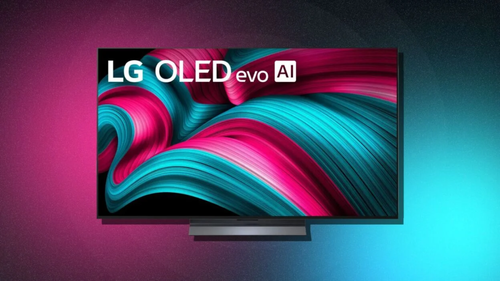
The LG C5 OLED, launched in mid-2025, is a top pick for webOS users who want clear voice control. It uses ThinQ AI to handle commands like finding movies or controlling smart home devices.
Key Highlights:
- Display: 4K OLED with bright colors and deep blacks.
- Processor: Alpha 9 Gen 8 for fast response.
- Audio: Built-in speakers with Dolby Atmos support.
- Connectivity: Four HDMI 2.1 ports for gaming and devices.
- Smart Features: webOS 25 with app store and voice ID for personal profiles.
Performance and Features: The TV responds quickly to voice inputs, even in noisy rooms. It supports multiple users by recognizing different voices.
Why It's Good for Voice Control: The "Hi LG" wake word lets you use it hands-free, and it works with Google Assistant or Alexa for extra options.
Price: ₹1,00,000–₹3,00,000 depending on size.
Verdict: A solid choice for families who need easy, personalized voice setup on webOS.
2. Sony Bravia 9
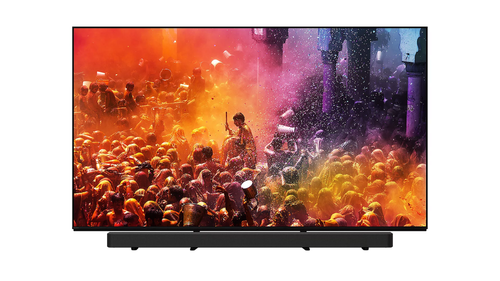
Released in early 2025, the Sony Bravia 9 runs Google TV and offers strong voice control for searching content or managing playback.
Key Highlights:
- Display: Mini-LED 4K with high brightness for day viewing.
- Processor: XR Cognitive Processor for sharp images.
- Audio: Acoustic Multi-Audio for clear sound.
- Connectivity: HDMI 2.1 with VRR for smooth gaming.
- Smart Features: Google TV interface with built-in mic for commands.
Performance and Features: Voice control feels natural, with quick app launches and content suggestions.
Why It's Good for Voice Control: "Hey Google" activates it without the remote, and it handles interruptions well for better talks.
Price: ₹2,00,000–₹4,00,000 based on screen size.
Verdict: Best for users who want premium picture quality with simple Google TV voice tools.
3. TCL QM8K
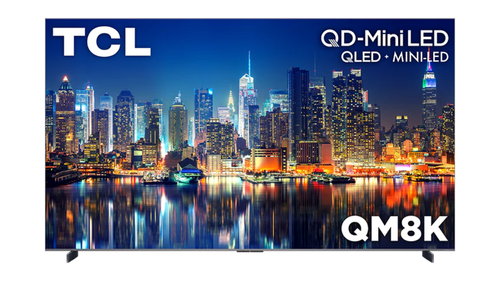
The TCL QM8K, updated in late 2025, is a budget-friendly Google TV model with reliable voice control for everyday tasks.
Key Highlights:
- Display: QLED 4K with mini-LED backlight for vivid colors.
- Processor: AiPQ Pro for smooth operation.
- Audio: Built-in subwoofer for better bass.
- Connectivity: Multiple HDMI ports including eARC.
- Smart Features: Google TV with voice remote and hands-free option.
Performance and Features: It handles voice searches fast, even for complex queries like weather or recipes.
Why It's Good for Voice Control: Affordable entry to Google Assistant, with easy setup for streaming services.
Price: ₹50,000–₹2,00,000 for different sizes.
Verdict: Great for first-time smart TV buyers looking for value in voice features.
How to Set Up Voice Control on Google TV
Google TV uses Google Assistant for voice control. This works on TVs like Sony Bravia 9 or TCL QM8K. Follow these steps to get started:
Step 1: Power on your TV and connect to Wi-Fi. Go to Settings > Network & Internet to link your home network. A stable connection is key for voice features.
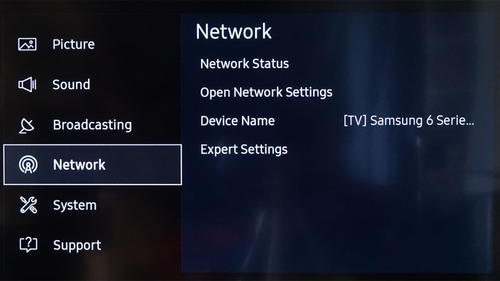
Step 2.: Sign in to your Google account. From the home screen, select your profile icon and add your Google details. This links the TV to your Assistant setup.
Step 3: Enable Google Assistant. In Settings > System > Google Assistant, turn it on. If your TV has a built-in mic, enable hands-free mode. For remotes, press the mic button to test.
Step 4: Train Voice Match. Say "Hey Google" and follow prompts to record your voice. This helps the TV recognize you better, even if others use it.
Step 5: Link smart devices if needed. In the Google Home app on your phone, add the TV as a device. This lets you control lights or thermostats with voice.
Once set, say "Hey Google, play a movie on Netflix" to test. Setup takes about 5-10 minutes.
How to Set Up Voice Control on webOS (LG TVs)
webOS on LG TVs like the C5 OLED uses ThinQ AI for voice control. It's simple and works with the Magic Remote.
-
Turn on the TV and update software. Press Settings on the remote, go to General > About This TV > Check for Updates. New software improves voice accuracy.
-
Enable voice recognition. In Settings > General > AI Service > Voice Recognition Settings, turn on Voice Recognition. Agree to terms if prompted.
-
Set the wake word. Choose "Hi LG" or customize it. Record your voice by speaking sample phrases as guided on screen.
-
Connect to accounts. Link your LG account and add Google or Alexa if you want extra assistants. This expands command options.
-
Test with the remote. Hold the mic button and say "Open YouTube" or "Volume up." For hands-free, ensure the TV mic is on in settings.
Setup is quick, usually under 5 minutes. Use the LG ThinQ app on your phone for remote control if the TV mic has issues.
Tips for Using Voice Control on Google TV and webOS
To make voice control work better, follow these tips:
-
Speak clearly and at normal speed. Avoid shouting or mumbling, as the system learns your voice over time.
-
Use specific commands. For Google TV, try "Hey Google, find action movies" or "Pause playback." On webOS, say "Hi LG, change channel to 5" or "Dim the screen."
-
Handle interruptions. Both systems can manage if you stop mid-sentence; just repeat the command.
-
Integrate with apps. Search in Netflix or YouTube directly, like "Play Stranger Things" to skip menus.
-
Control smart home. Link devices to turn on lights or check weather, e.g., "Hey Google, what's the temperature?"
-
Privacy settings. In Google TV, go to Settings > Privacy to limit data sharing. On webOS, check AI Service for voice data options.
-
Use in quiet rooms first. Background noise can confuse the mic; move closer if needed.
-
Update regularly. New updates in 2026 add better voice handling, like emotional tones or faster responses.
These tips help avoid common frustrations and make daily use smooth.
Troubleshooting Common Voice Control Issues
If voice control fails, try these fixes:
-
Mic not working: Check if it's muted on the remote or TV settings. Clean the mic hole if dusty.
-
No response: Ensure internet is stable. Restart the TV by unplugging for 30 seconds.
-
Wrong commands: Review supported phrases in the TV help menu or online guides.
-
Voice not recognized: Retrain Voice Match in settings. Speak in a quiet space during setup.
-
App conflicts: Close background apps or restart the TV to free up resources.
-
Software bugs: Update to the latest version. If issues persist, reset voice settings.
Most problems fix with a restart or update, keeping your setup reliable.
Smart TV Voice Control Trends in 2026
-
Hands-Free Growth: More TVs like LG C5 support wake words without remotes, making control easier.
-
AI Improvements: Google TV and webOS use better AI for natural language, understanding accents or slang.
-
Multi-Assistant Support: TVs integrate Google, Alexa, and Siri for flexible use.
-
Privacy Focus: New features let you delete voice data easily.
-
Integration with Homes: Voice controls now manage more devices, like cameras or appliances.
Also Read: How to Choose the Right OLED TV for Gaming in 2026
Choosing the Right Smart TV for Voice Control Needs
| Need | Best Model | Why |
|---|---|---|
| Budget-Friendly Setup | TCL QM8K | Affordable with easy Google TV voice tools |
| Premium Picture with Voice | Sony Bravia 9 | High-end display and smooth "Hey Google" commands |
| Personalized Family Use | LG C5 OLED | webOS voice ID for multiple users |
| Gaming with Control | Sony Bravia 9 | Fast response for voice during play |
| Large Screen Hands-Free | TCL QM8K | Big sizes with built-in mic |
Final Thoughts
In 2026, voice control on Google TV and webOS turns smart TVs into helpful tools for quick tasks. From setup steps to daily tips, it's designed for ease. Models like LG C5, Sony Bravia 9, and TCL QM8K show how this feature fits different budgets. With trends toward smarter AI, voice control will only get better, saving time and reducing remote hunts.
Comparos Says: Voice control simplifies TV time in 2026, set it up on Google TV or webOS for hands-free fun, and pick a model like LG C5 for reliable daily use.
Ad
Ad
Confused? Choose Your Phone
What Matters Most


Get TheWeekly Brief
One email each morning: the launches,
the price changes and the reviews
worth reading.

Ad
Ad
 |
|
807, 808, 8th Floor,
IRIS Tech Tower Sohna Road Sector 48,
Gurugram, Haryana - 122018